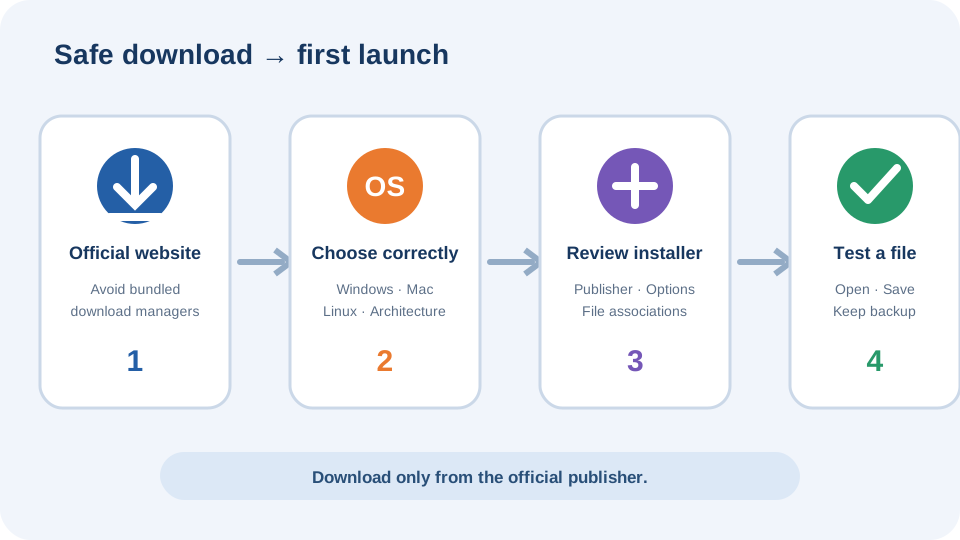
Before downloading Blender
Check the Blender system requirements and confirm your operating system and processor. Recent Blender releases may have different minimum requirements from older LTS versions. Always verify the current details on blender.org.
Install on Windows
The standard installer integrates Blender into Windows and can add shortcuts and file associations. A portable ZIP keeps the program in its own folder. Follow the full Windows installation walkthrough for package selection and first launch.
Install on Mac
Choose the download offered for Apple silicon where supported. Older Intel Macs may require an earlier supported LTS release. Open the DMG, move Blender to Applications and verify its source before approving the first launch. See the Mac installation guide.
Upgrade without losing work
- Back up important .blend files.
- Keep the prior stable version until projects open correctly.
- Do not overwrite the only copy of a project after saving in a newer format.
- Check add-on compatibility before migrating preferences.
First project test
Create a new file, move the default cube, save a copy and render a small image. This confirms the interface, write permissions and basic graphics setup before you start a larger project.