VLC TROUBLESHOOTING
VLC Subtitles Not Showing or Out of Sync? Step-by-Step Fix
Load captions, choose the correct subtitle track and bring dialogue back into time on desktop VLC.
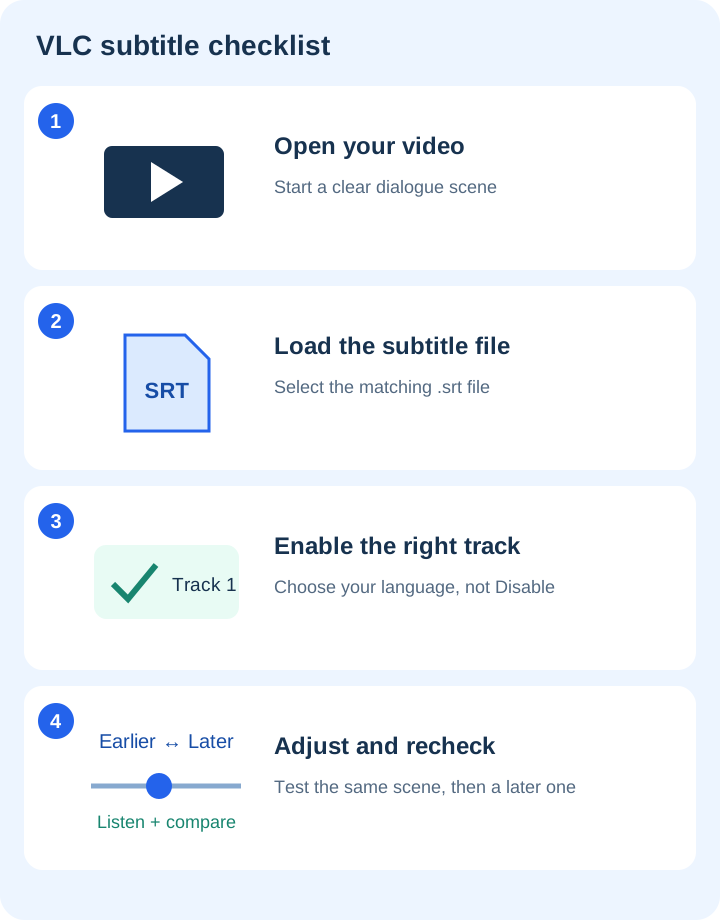
A subtitle problem usually belongs to one of three groups: VLC has not loaded the file, a different track is selected, or the text is timed for a different video. Check those separately before changing preferences. This guide covers desktop VLC; phone apps have different controls.
1. Open the video and identify the subtitle file
Start the video in VLC and find a short scene with clear speech. A separate subtitle is often an .srt file; it contains text and timestamps, not the video itself. Keep a copy of both files in a folder you can find. If the subtitle arrived as an archive, extract it first and inspect the extracted filename.
A file called captions.srt.exe is an executable, not a subtitle. You do not need to run an installer to load an SRT file. Obtain captions from the video owner, your own transcription or another source you trust.
2. Load the subtitle and select its track
- With the video open, find the Subtitle or Subtitles menu.
- Choose Add Subtitle File where available, then select your subtitle file. On an interface with different wording, look for the subtitle-file option in Open Multiple Files.
- Open the subtitle-track list and select the required language or track. Make sure it is not set to Disable.
- Resume playback at the dialogue scene and check that text appears.
Some MKV files contain several built-in subtitle tracks. Try the embedded tracks before adding an external file. VideoLAN documents both embedded tracks and separate files, including SubRip/SRT. VobSub subtitles normally require the .idx index file alongside their associated data file.
3. Fix subtitles that appear too early or too late
First decide which direction the timing is wrong. If a caption appears before the words are spoken, delay it. If it appears after the words, move it earlier. VideoLAN documents H to delay subtitles and G for the opposite direction in the desktop hotkey guide. Shortcuts can differ if you changed bindings or use another platform, so review VLC’s Hotkeys settings if they do not respond.
For a numeric control on Windows or Linux, open Tools → Track Synchronization and find subtitle synchronization. Make a small adjustment, replay the same scene and observe whether the result improves. If it becomes worse, return to the previous value and change direction. This is easier to verify than entering a large guessed offset.
4. Check whether the error stays constant or grows
Test dialogue near the beginning and later in the video. If the error is roughly the same throughout, a playback delay may be enough. If captions start correctly but drift farther away, the subtitle may belong to a different cut, frame rate or edit of the video. A single offset cannot reliably repair a growing timing error. Look for a matching caption file or correct a copy in a subtitle editor.
Playback synchronization is a viewing adjustment. It does not mean VLC has rewritten the subtitle file or permanently added captions to your video. Reopen the media to check which settings persist before sharing anything.
Text still missing, tiny or unreadable?
- No text: check the active track and subtitle-enable setting before resetting all preferences.
- Wrong symbols: inspect a copy of a text subtitle in a text editor and check character encoding. Do not overwrite the only original.
- Text too small: review subtitle appearance preferences. VideoLAN notes that image-based subtitles have different limitations from rendered text.
- Captions remain after disabling: they may be burned into the video picture. A subtitle-track switch cannot remove text that is part of the image.
Quick check before you finish
- The correct video and caption file are open.
- The intended subtitle track is enabled.
- One dialogue scene is aligned.
- A later scene is also aligned.
- Original media and subtitle files are preserved.
Official references and related help
Controls were checked against VideoLAN’s desktop documentation on October 23, 2026.