VLC PLAYBACK HELP
How to Rotate a Video in VLC and Restore Normal Playback
Make a sideways recording comfortable to watch, then clear the effect before opening another video.
A recording can play sideways because it was captured in another orientation or because an application handles its rotation information differently. VLC can change the displayed orientation for viewing. Keep the original recording while you test, especially if another player already shows it correctly.
1. Check the video before changing settings
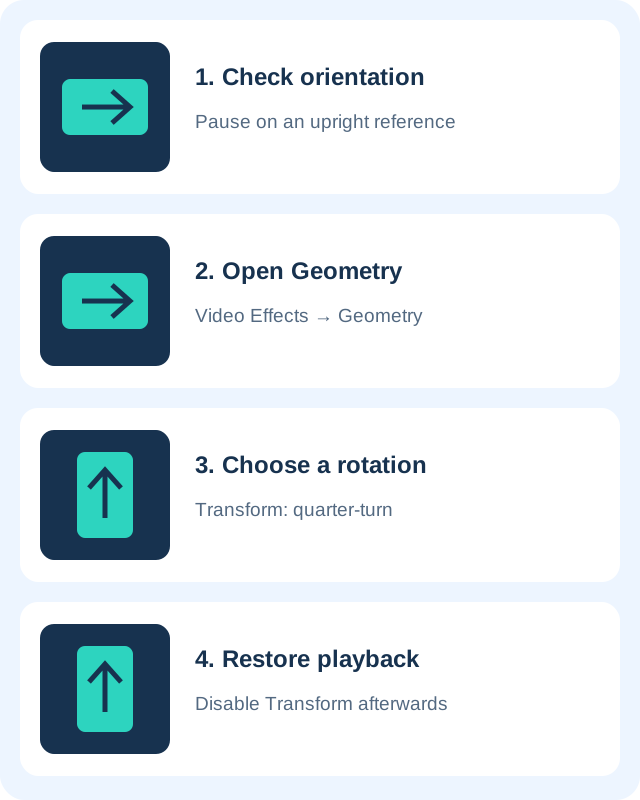
Open the recording in VLC and pause on a frame with a clear upright reference, such as a doorway or a person standing. Decide whether the picture needs a quarter-turn clockwise, a quarter-turn in the other direction or a half-turn. If every video is already sideways, inspect existing effects first rather than adding another rotation.
Check one other recording in VLC. That helps distinguish a setting affecting playback from a problem with one file. Avoid moving or replacing the only copy of the recording during troubleshooting.
2. Open the Geometry controls
On desktop Windows or Linux, open Tools → Effects and Filters, then select Video Effects → Geometry. VideoLAN documents this route to the Geometry tab. Find the Transform option for fixed rotations. On macOS, look for Video Effects and Geometry in the application’s menus; the menu arrangement differs from the Windows interface.
Enable Transform and choose the fixed rotation that fits your recording, typically 90, 180 or 270 degrees. Prefer a fixed quarter-turn for a phone video that is simply sideways. Avoid enabling several geometric effects together while you are trying to identify the right orientation.
3. Compare the result without distorting it
Resume a few seconds of playback. Check that faces and written text are upright and that the orientation stays correct as the camera moves. If you picked the wrong direction, change the transform choice instead of also enabling another rotation control. A 90-degree correction and a 270-degree correction turn in opposite directions.
Portrait video may have empty space beside it in a landscape window. That is normal. Stretching the aspect ratio to fill the screen can distort faces and objects. If the picture is cropped, inspect any crop or aspect-ratio settings separately and restore the default view before judging the rotation.
4. Turn the effect off afterwards
Return to Geometry and disable the Transform setting you enabled. If you also tried another rotation control, disable that as well. Open a known upright video and verify normal playback. Some playback settings may continue to affect later files, so checking another recording is a useful final step.
If a video unexpectedly rotates on a later visit, revisit these controls before reinstalling VLC or resetting every preference. A targeted correction preserves your other settings and makes it easier to see what caused the change.
Does this save a rotated video?
A playback effect changes how VLC displays the recording. It does not by itself create a permanently corrected copy that another app will show the same way. For a file you need to upload or share, use an editing or conversion workflow and export a new copy. VideoLAN documents filters in transcoding, but exporting requires separate configuration and should be tested on a short clip first.
For a timeline-based editing workflow, see our Shotcut guide. Keep the original and verify exported orientation, sound, duration and picture quality before sharing. Renaming the extension or sending the unmodified original does not preserve VLC’s viewing effect.
Related help and official references
- VideoLAN: Effects and Filters and the Geometry tab
- VideoLAN: transcoding and output filters
- VLC download and desktop setup
- Fix VLC subtitles and caption timing
Official documentation checked October 25, 2026. Control names can vary with your platform, release and language.