OBS RECORDING HELP
Convert an OBS MKV Recording to MP4 Without Re-encoding
Make a compatible copy of your recording without recording it again.
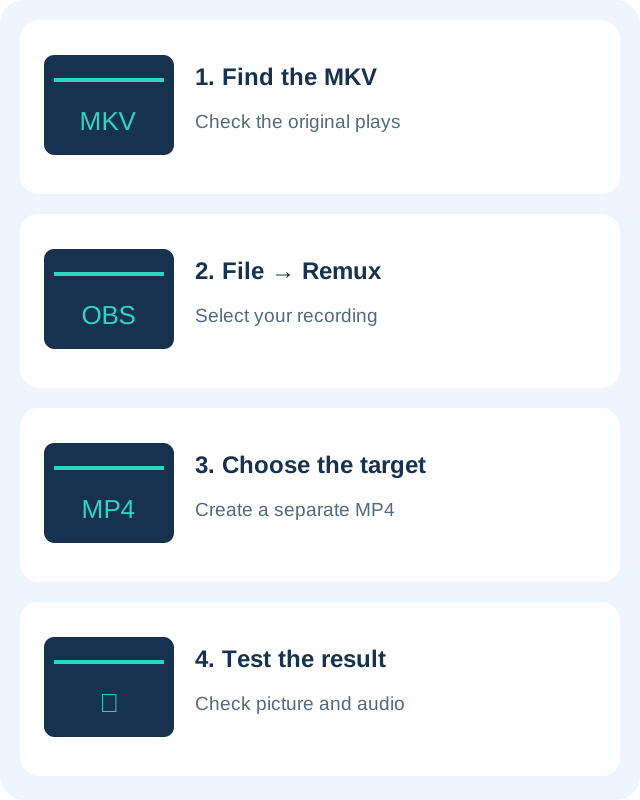
Your OBS recording plays in VLC, but an editor or upload form asks for MP4. You usually do not need to record the screen again. For supported recordings, OBS can copy the encoded audio and video into an MP4 container through its built-in remux tool. Keep the MKV until you have checked the new file.
Before you start
Finish the recording and allow OBS to stop writing the file. Locate it through File → Show Recordings or the recording path in Settings → Output. Check that the filename ends in .mkv and that you have free space for a second copy. Do not simply rename .mkv to .mp4: changing the name does not rebuild the container.
If OBS is not installed, use the OBS Studio page and official download link. This workflow runs on your computer and does not require uploading a private recording to a conversion website.
1. Check the original recording
Open the MKV in a player such as VLC. Seek to the beginning, middle and end and listen for the expected sound. If the original is already silent or incomplete, remuxing cannot recreate missing audio or video. Preserve the original while investigating the recording setup.
2. Open Remux Recordings
In OBS, choose File → Remux Recordings. Select your source recording in the OBS Recording field. Review the target filename and destination before starting. Use a new output name if a similarly named MP4 already exists, so that you do not replace a previous edit by mistake.
A useful folder layout is an originals folder containing the MKV and a delivery folder containing the MP4. This makes it easier to distinguish the capture from the version you intend to send. Avoid working directly on your only backup drive.
3. Run the remux and wait for completion
Start the Remux operation and wait for OBS to report its result. The time depends on the recording size and storage speed. Leave the source drive connected and do not close the application midway through the copy. A successful operation produces a separate output file.
Remuxing copies existing encoded streams into a different container rather than encoding a new picture. It therefore does not serve as a way to reduce file size substantially, improve resolution, remove noise or trim unwanted scenes. Those tasks require a separate editing or encoding workflow.
4. Test the MP4 in its destination app
Play the MP4 and check duration, picture, seeking and sound. Then import it into the editor or service that originally rejected the MKV. Only remove a redundant copy after the result has been checked and the important original has a backup.
MP4 describes a container, not a promise that every device supports its contents. Video and audio codecs still matter. If the MP4 plays in VLC but not in your target application, consult that application’s supported codec list. Re-encoding to a supported codec may be needed; repeatedly remuxing will not change the codec.
Missing audio or two output files?
With multiple recorded audio tracks, a player may use only one track by default. Check its audio-track menu and the recording’s track setup before assuming that sound was deleted. Compare with the MKV to determine whether the problem existed at capture time.
OBS also offers automatic remuxing in its advanced settings. When enabled, keeping both an MKV and an MP4 can be expected: one is the capture and the other is the remuxed copy. Review your storage budget before enabling this for long sessions. For a first attempt, manual remuxing is easier to inspect.
Official references
- OBS standard recording output guide
- OBS audio and video formats guide
- OBS Studio overview
- Save a still image from a video in VLC
Official documentation checked October 31, 2026. Menu labels can vary by release.