WINDOWS FILE BASICS
How to Extract ZIP Files with 7-Zip on Windows
Unpack a download into its own folder and check the files before using them.
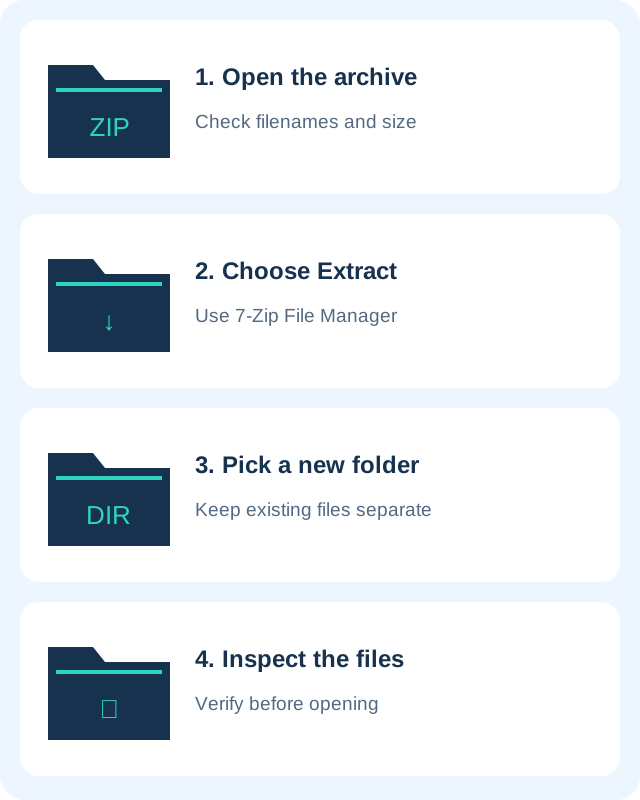
A ZIP file packages other files together. Opening the archive shows its contents, while extracting creates ordinary files in a destination folder. Extracting into a new folder keeps the result organised and reduces the chance of replacing unrelated documents.
1. Check the download and open the archive
Confirm that the download finished and that you expected the file. Open 7-Zip File Manager and browse to the archive, then open it to inspect the list of contents. If you need to install 7-Zip, use the publisher’s official website and choose a package appropriate for your Windows system.
Look at filenames and the unpacked size before continuing. A small archive can expand into many large files. Make sure the destination drive has enough free space. If an unexpected archive arrived through email, confirm the sender through a separate channel before opening its contents.
2. Use Extract rather than working inside the ZIP
In 7-Zip File Manager, select the archive’s contents and click Extract. Choose a new destination folder, such as a named folder inside Downloads. For example, extract invoices.zip into Downloads/invoices-review rather than directly into a folder full of other documents.
Windows context menus may also offer 7-Zip extraction commands; their placement depends on the system and installation. The File Manager workflow is useful when you cannot find that menu. The official FAQ recommends the Extract command as one way to avoid the temporary-file copying involved in dragging files from 7-Zip into Explorer.
3. Review overwrite and password prompts
If an overwrite prompt appears, pause and check the destination. Extracting to a new empty folder is usually easier than deciding which existing files to replace. Do not approve replacement of important work simply to make the prompt disappear. Keep the original archive until you verify the extracted result.
For an encrypted archive, use the password supplied by the sender through a trusted channel. A password is case-sensitive. If it fails, check spaces and keyboard layout and confirm it with the sender. Do not upload a private archive to an unknown password-recovery website or pay a caller claiming they must remotely unlock your computer.
4. Check the extracted files
Open the destination folder in Windows File Explorer and confirm that the expected documents and subfolders are present. Scan unfamiliar downloaded material with your installed security software before using it. A successful extraction confirms that files were unpacked; it is not a guarantee that those files are safe.
Show file extensions when checking a download. A name ending in .pdf.exe is an executable rather than an ordinary PDF. Avoid running unexpected programs, scripts or macro-enabled documents from an archive. For a trusted software package, follow its publisher’s installation instructions rather than assuming that every extracted file should be opened.
What do CRC Error and Data Error mean?
7-Zip’s official FAQ describes cases where the file list opens but Extract or Test reports a CRC or data error. The archive may be incomplete or damaged. Download a fresh copy from the original source or ask the sender to create and send the archive again. If it consists of multiple parts, confirm that every part is present in the same folder.
Do not rely on a partially extracted document as a complete copy. Advanced recovery is not guaranteed and should be attempted on duplicates. The official recovery page explains technical options for damaged 7z archives; those procedures are separate from this basic ZIP extraction workflow.
Official references and related help
- 7-Zip FAQ: extraction and archive errors
- 7-Zip technical support
- 7-Zip overview and official download
- Open supported office documents with LibreOffice
- Export a Writer document as PDF
Official references checked October 29, 2026. This walkthrough covers the Windows graphical application.