LIBREOFFICE WRITER
How to Export LibreOffice Writer to PDF Without Losing Layout
Make a shareable PDF while preserving an editable copy of your document.
A PDF is useful when the recipient needs to read or print your document without editing its structure. Keep the Writer file as your working copy and export a separate PDF for delivery. That gives you a clear route back to the original text if you discover an error.
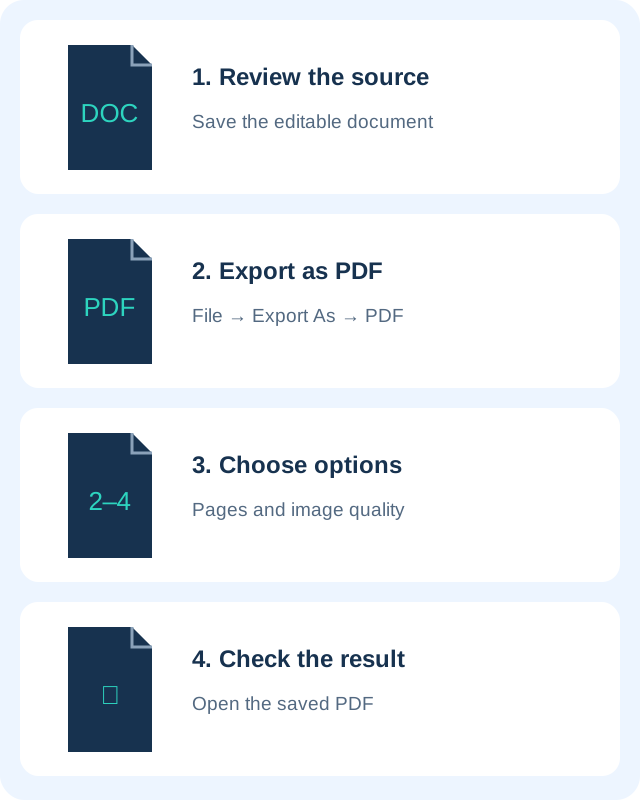
1. Review and save the Writer document
Open the document in Writer and save your changes. Check the page size, margins and page breaks before exporting. Scroll through the first and last pages, tables and any pages containing large images. If you opened a DOCX file, inspect it carefully because fonts and layout can differ from the application that created it.
Use a descriptive filename for your editable copy. Do not replace it with a PDF and assume you will retain the same editing experience. If you need to revise headings, tables or page numbering later, make those changes in Writer and export again.
2. Open the PDF export options
Choose File → Export As → Export as PDF. Depending on your interface, you can also choose File → Export and select PDF as the file type. The export dialog lets you review settings before saving. Export Directly as PDF uses existing default settings, so the full dialog is a better choice when you need a particular page range or image setting.
Look at the destination folder before confirming the filename. Saving to a folder you can find is especially useful when your browser or email app later asks you to attach the result. Give each revision a distinct name if recipients might otherwise confuse it with an older copy.
3. Select the pages and image settings
In the General tab, choose whether to export the whole document or a page range. For a simple continuous range, enter something like 2-4 and check the result afterwards. A range removes other pages from this export; it does not delete them from the Writer document.
For images, lossless compression preserves pixels while JPEG compression can reduce file size at the expense of detail. Lowering image resolution can also make a document smaller. Start with a readable export, then reduce settings only when a destination has a file-size limit. Text-heavy documents usually benefit more from clear layout than aggressive image compression.
4. Export and open the PDF
Complete the export, then open the actual saved PDF in a viewer. Check the page count and inspect small text, table borders and pictures at a normal reading size. Test links if the document includes them. Print one representative page when the PDF is intended for paper, rather than discovering a margin problem after printing the whole file.
If something is wrong, return to Writer, correct the source and export a new version. Repeatedly patching different copies makes it difficult to know which file is authoritative. Attach or upload only the verified export and keep your editable source separately.
Privacy checks before sending
Review comments and any export options that include annotations. Decide whether the recipient should receive those comments. Also inspect names, addresses and images in the document itself. Exporting to PDF does not automatically remove private information visible on a page.
Do not treat a PDF as a guarantee that copying or editing is impossible. For sensitive material, use an appropriate sharing method and confirm the recipient. A filename and an attachment preview are not a substitute for opening the final file.
Related help and official references
- LibreOffice: PDF export settings
- LibreOffice: Export As and direct export
- LibreOffice overview and official download
- Choose a free PDF editing tool
- Reduce image file size before adding pictures
Official guidance checked October 26, 2026. Menu labels depend on your version and interface language.