IPHONE PERSONALISATION
How to Add a Custom Ringtone on iPhone Using GarageBand
Use a recording or compatible audio file to make your own call sound, directly on your iPhone.
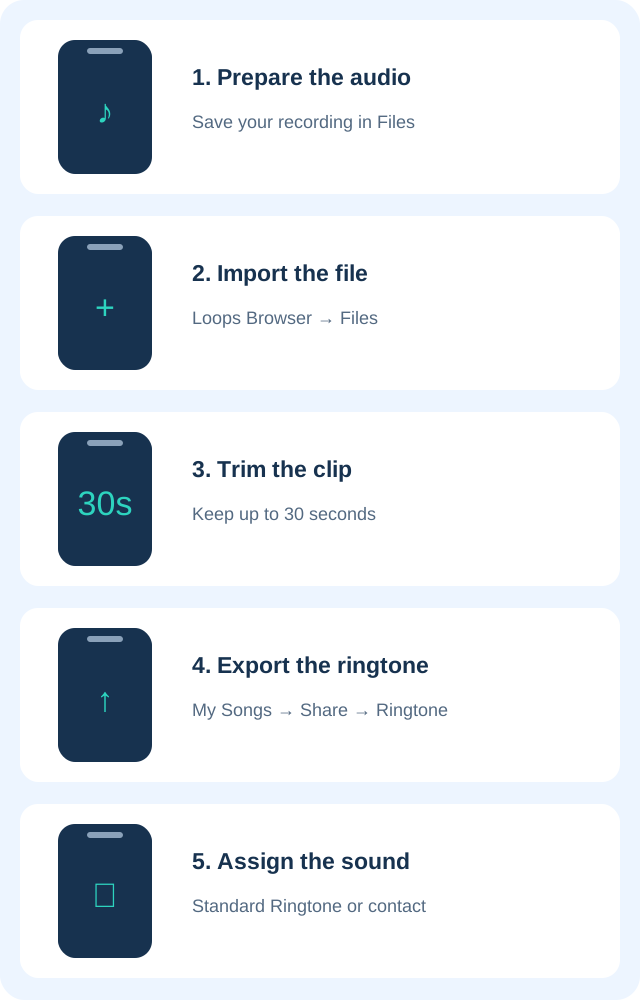
GarageBand can turn compatible audio into an iPhone ringtone without a computer. You need an audio file you can access, the GarageBand app and a short section of sound. Exported ringtones can be up to 30 seconds. Use your own recording or audio you have permission to use.
Before you begin
- Install GarageBand from Apple’s App Store if it is not already installed.
- Save your audio in Files, either on your iPhone or in iCloud Drive, and make sure it is available to open.
- Choose a recognisable section with a clear start. Avoid a long silent introduction.
An Apple Music subscription download is not automatically a usable ringtone source. Apple says protected files cannot be used; a dimmed library item may be protected or not downloaded. Keep the original audio while you edit a copy in your project.
1. Start a GarageBand recording project
Touch and hold the GarageBand icon on the Home Screen and choose Create New Audio Recording. When the app opens, tap the Tracks button to see the timeline. Select the track using the instrument icon, then open the Loops Browser at the top of the screen.
If your app opens to an existing song instead, return to My Songs and start a new audio-recording project. You do not need to record a live performance when you already have a usable file.
2. Import your audio
In the Loops Browser, choose Files, then Browse items from the Files app. Locate the audio file. Touch and hold it, then drag it into Tracks view and position its start at the far left. Apple also supports selecting eligible downloaded tracks through the Music tab.
If a long file is imported only partly, inspect the song section length. Apple’s import guide says Automatic allows the full audio file to be imported. You will still trim the ringtone down before exporting. If the file stays unavailable, try an ordinary compatible recording rather than a protected library item.
3. Trim to the section you want
Tap the audio region and drag its left and right edges to keep a section no longer than 30 seconds. Touch and hold an edge to zoom for more precise editing. After trimming, move the selected region all the way to the left so the ringtone does not begin with empty timeline space.
Play the result before exporting. Check the first second, volume changes and ending. A clean short clip is usually easier to recognise than a section that starts quietly or cuts off mid-word. If you leave it too long, GarageBand offers to shorten it automatically during ringtone export.
4. Export as a ringtone
- Tap the Navigation button and return to My Songs.
- Use More → Select and select your project, then tap Share. You can also touch and hold a project in My Songs and choose Share.
- Select Ringtone, enter a useful name and tap Export.
- If the length warning appears, choose Continue for automatic shortening or Cancel to edit the clip yourself.
Sharing as Song creates an audio file. Choose Ringtone for the ringtone export workflow. Giving each tone a distinct name makes it easier to find later.
5. Set it for all calls or one contact
After export, tap Use sound as. Choose Standard Ringtone for general incoming calls, Standard Text Tone for messages, or Assign to contact for a particular person. Choose Done if you want to assign it later.
To change the general sound later, open Settings → Sounds & Haptics → Ringtone and select the tone. For one person, open Contacts, select the contact, tap Edit and choose Ringtone. Preview it and check the ringer-volume setting. Silent mode or a Focus can still affect incoming-call alerts.
Quick troubleshooting
- Audio is greyed out: check that it is downloaded and unprotected.
- Ringtone starts with silence: move the trimmed region to the start of the timeline.
- Wrong section plays: cancel automatic shortening and trim manually before exporting again.
- No ringtone after export: check that you shared as Ringtone, then look in Sounds & Haptics.
Official Apple help and related guides
- Apple: create a custom ringtone
- Apple: share a GarageBand song as a ringtone
- Apple: import audio files
- iPhone backup checklist
- Check photo location data before sharing
Instructions checked against Apple guidance on October 25, 2026.