IMAGE FORMATS
How to Convert HEIC to JPG on iPhone, Mac & Windows
Make an iPhone photo easier to upload or share without replacing your original file.
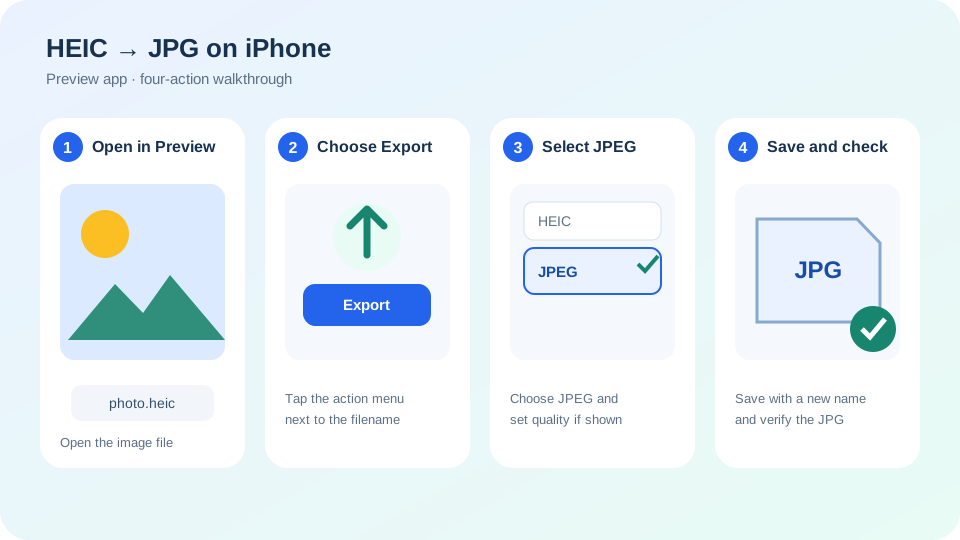
HEIC is an efficient photo format used by many Apple devices, while JPG is accepted by more websites, forms and older apps. Conversion is useful when an upload rejects a .heic file, but it creates a second image—it does not improve the photo. Keep the original until you have opened and checked the JPG.
Convert HEIC to JPG on iPhone
- Open the HEIC image in Apple’s Preview app. If it is in Photos, save a copy to Files first when needed.
- Tap the Actions menu next to the filename and choose Export.
- Select JPEG. If a size or quality control appears, start near the high-quality end for documents and printing.
- Choose a destination, give the copy a recognizable name and tap Save.
Apple lists HEIC, JPEG, PNG, PDF and TIFF as export choices in Preview on supported iPhone software. Menus can differ on older iOS releases. If Preview or Export is unavailable, use the Mac method below or a compatible app you trust.
Convert on a Mac with Preview
- Make a copy if the image is important, then open the HEIC file in Preview.
- Choose File → Export. Do not choose “Export as PDF.”
- Open the Format menu, select JPEG and set the quality slider.
- Choose a new filename or folder and click Save.
For several photos, Apple says you can open them in one Preview window, select the items in the sidebar and export them together. Check a detailed area of the output before deleting anything.
Open and convert HEIC on Windows
First try opening the file in Microsoft Photos. If Windows says an extension is required, use the Microsoft Store link shown by Windows and confirm the publisher. Microsoft notes that HEIF files may require an extension. Once the photo opens, open a copy in Paint and use File → Save as → JPEG picture, then compare the result with the original.
If you import directly from an iPhone, Apple notes that some transfer workflows can convert HEIF photos to JPEG. For private IDs, medical images or family photos, prefer built-in or offline conversion rather than uploading the image to an unfamiliar website.
Choose quality without making a huge file
JPG uses lossy compression. A high setting keeps more detail but makes a larger file; a low setting can create blocks or halos around text and edges. Check the upload service’s pixel and file-size limits. Export once at high quality, then use the Image Compressor only if the result is too large. Repeatedly resaving a JPG can discard more detail.
HEIC or JPG: which copy should you keep?
Keep HEIC as the smaller original when your devices support it. Use JPG for broad compatibility, older software and websites that reject HEIC. Conversion does not automatically remove metadata. If a picture could reveal a home, workplace or travel location, use the photo location-data checklist before sharing it.
Before you upload the JPG
- Open it and zoom in on text, faces and fine edges.
- Confirm width, height and orientation.
- Check the service’s file-size limit.
- Remove sensitive location data when appropriate.
- Keep the HEIC original until the upload succeeds.